PDF workspace
Edit, merge and arrange PDFs, export to Word, or combine JPG and PNG images into one PDF. Reorder and rotate images before confirming the task.
Edit and organize documents
Edit text, move images, add annotations and arrange pages. Preview the result and save a new version while retaining the original file.
Export for the next step
Choose preserved layout or editable paragraphs when exporting to Word. Use OCR for scanned pages and review complex layouts, tables and fonts after conversion.
File privacy cleanup
Images: supported location and device metadata. PDF: author, title and XMP properties. Office: author, last editor, manager and company fields. Each file type shows its cleanup scope before processing.
Structured content and source review
Extract text, headings and supported tables with references to original pages or Office parts. Search the original text and save templates that match explicitly labelled fields. Missing values stay empty and multiple matches require review. Download JSON, Markdown and per-table Excel or CSV; Excel stores recognized values as text. Images and unsupported features remain in the original. Keep the sources: deleting a source stops access to its derived content. OCR structure output supports up to 50 pages within subscription limits, with one combined quote and automatic batching. Search and repeat downloads of the same result do not start another processing job. GPU preference uses a compatible GPU when available; GPU-only mode never silently falls back to CPU. This is not automatic question answering or guaranteed perfect layout recovery.
Images to PDF
Combine one to ten JPG or PNG images into a single PDF from either the PDF or Image workspace. Reorder, rotate or remove images before confirming. Each image occupies one A4 page with its proportions preserved and white margins. Upload limits depend on your workspace. This operation preserves images; it does not recognize text or make it editable.
Formats, limits and help
Supported scope
- Access and processing
- Files used in cloud tasks are uploaded for processing. Sign in and choose a workspace. Review credits before confirming. File size, page and storage limits depend on the selected operation and subscription; the current upload and confirmation screens show the applicable limits.
- Limits and conditions
- Edit text and images, annotate, arrange, merge and split pages. Export PDF to Word with layout preservation or reflow. Scanned text requires OCR; complex fonts, tables and signatures need review. Editing a signed PDF can invalidate its signature. Keep the original and inspect the saved output. Extract text, headings and supported tables with references to original pages or Office parts. Search the original text and save templates that match explicitly labelled fields. Missing values stay empty and multiple matches require review. Download JSON, Markdown and per-table Excel or CSV; Excel stores recognized values as text. Images and unsupported features remain in the original. Keep the sources: deleting a source stops access to its derived content. OCR structure output supports up to 50 pages within subscription limits, with one combined quote and automatic batching. Search and repeat downloads of the same result do not start another processing job. GPU preference uses a compatible GPU when available; GPU-only mode never silently falls back to CPU. This is not automatic question answering or guaranteed perfect layout recovery. Combine one to ten JPG or PNG images into a single PDF from either the PDF or Image workspace. Reorder, rotate or remove images before confirming. Each image occupies one A4 page with its proportions preserved and white margins. Upload limits depend on your workspace. This operation preserves images; it does not recognize text or make it editable.
| Input | Output / result |
|---|---|
| PDF; DOCX | |
| JPG, PNG |
Reviewed format routes, not a promise for every file. Container extensions can contain different codecs; encrypted, damaged or unsupported content may fail. Available choices are checked again when you use the tool.
How to use
- Choose an operation and workspace; add a compatible file.
- Set the output and options, then review the scope and credits.
- Run the task, review the result and download the file.
Example
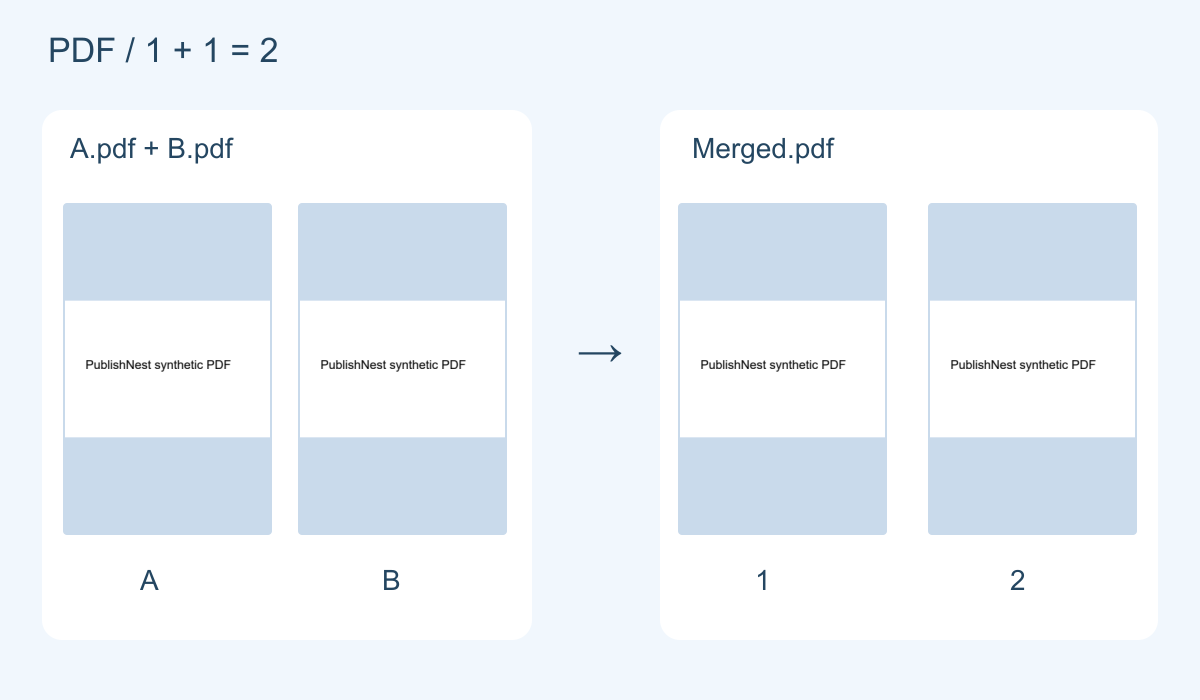
Merge a two-page report and a one-page appendix in that order; download the result and check that it has three pages. A preview or quote is not the final saved file.
Frequently asked questions
Are my files uploaded?
Files used in cloud tasks are uploaded for processing. Sign in and choose a workspace. Review credits before confirming. File size, page and storage limits depend on the selected operation and subscription; the current upload and confirmation screens show the applicable limits.
What scope and limitations should I check?
Edit text and images, annotate, arrange, merge and split pages. Export PDF to Word with layout preservation or reflow. Scanned text requires OCR; complex fonts, tables and signatures need review. Editing a signed PDF can invalidate its signature. Keep the original and inspect the saved output. Extract text, headings and supported tables with references to original pages or Office parts. Search the original text and save templates that match explicitly labelled fields. Missing values stay empty and multiple matches require review. Download JSON, Markdown and per-table Excel or CSV; Excel stores recognized values as text. Images and unsupported features remain in the original. Keep the sources: deleting a source stops access to its derived content. OCR structure output supports up to 50 pages within subscription limits, with one combined quote and automatic batching. Search and repeat downloads of the same result do not start another processing job. GPU preference uses a compatible GPU when available; GPU-only mode never silently falls back to CPU. This is not automatic question answering or guaranteed perfect layout recovery. Combine one to ten JPG or PNG images into a single PDF from either the PDF or Image workspace. Reorder, rotate or remove images before confirming. Each image occupies one A4 page with its proportions preserved and white margins. Upload limits depend on your workspace. This operation preserves images; it does not recognize text or make it editable.
What if a file cannot be processed?
Keep the original. Check the input format, selected options and displayed limits; save a compatible copy in the source application if needed. When reporting an error, include the diagnostic ID if shown. Never send a password or private document in a public report.
Can I combine several photos into one PDF?
Yes. Open Images to PDF, upload JPG or PNG files or select saved images, arrange their order, then review the credits and create one PDF. Up to ten images are supported per file; download the result and check the order and orientation.
Reviewed: 2026-11-01
A worked example